
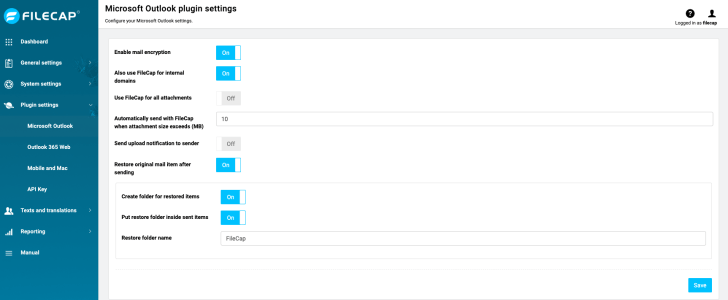
| Enable e-mail encryption | When this option is “On” the “Send Encrypted” button will be visible in the FileCap Outlook Plugin |
| Also use FileCap for internal domains | When this option is “On” FileCap will also be used for local domains (The domains configured under “Transfer settings“) |
| Use FileCap for all attachments | Send all files attached to an e-mail through FileCap.Note: For this function you need FileCap Outlook Plugin version 4.0.7 or higher. |
| Automatically send with FileCap when attachment size exceeds (MB) | Specify the threshold in MB from which FileCap will strip the attachments and send them via the FileCap server.For example: ‘3’ means that any total attachment size exceeding 3MB will be stripped from the e-mail and placed on the FileCap server. |
| Send upload notification to sender | When this is set to “On” the sender will receive a notification that the upload was successful when using the FileCap Outlook Plugin.The upload notification will also contain a link which makes it possible for the sender to block the transfer.
Note: For this function you need FileCap Outlook Plugin version 4.1.0 or higher. |
| Restore original mail item after sending | When this option is set to “On” the original e-mail text and attachments will be restored in the Outlook “Sent Items” folder.Note: For this function you need FileCap Outlook Plugin version 4.2.2 or higher. Also this function is configurable per-user with a registry setting. |
| Create folder for restored items | When this option is set to “On” there will be a folder created for restored e-mail items. If this setting is set to “Off” restored e-mail will be placed directly in the sent items folder. |
| Put restore folder inside send items | The restore folder will be placed inside the sent items folder when this option is “On”. |
| Restore folder name | Specify the name of the restore directory (Default: FileCap) |
 FileCap
You must be logged in to post a comment.